Managing a project means managing the team. And when it comes to managing a team, being fair and preventing burnout is crucial. Let’s be honest: teams often struggle with uneven workloads. A few people are constantly buried in tickets, while others wait for work to be assigned to them. That’s a management problem.
To fix this, you need accurate data. Standard Jira reports show what’s happening right now, but they often miss the long-term picture of who is carrying the heaviest load. That’s where Timepiece – Time in Status for Jira’s Assignee Duration Report becomes essential. It helps you balance workloads, reduce burnout risk, and build a healthier team culture.
Why Manual Time Tracking Falls Short?
Most teams rely on manual worklogs to track effort. But logging time is tedious, and people often forget or guess their hours. Assignee Duration is different because it requires zero manual input.
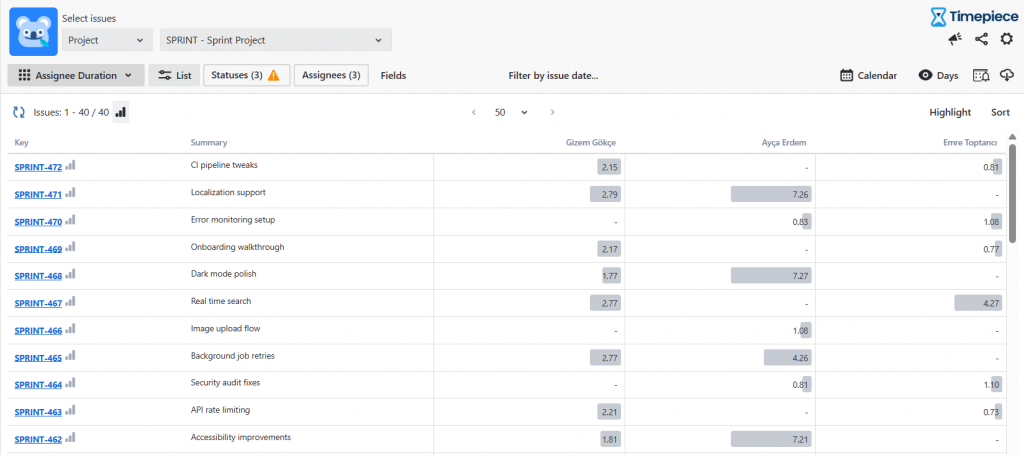
Instead of asking users to type in their hours, Timepiece looks at the Jira issue history. It calculates exactly when a ticket was assigned to someone and when it moved to the next person. This gives you an objective look at ownership. You can see how long an issue stayed with a specific person without relying on anyone’s memory.
How to Identify Bottlenecks in Your Team?
In many software teams, senior developers often become unintentional Kanban blockers. Because they handle complex architectural checks, they hit their WIP (Work in Progress) limits faster than the rest of the team, stalling your entire Agile workflow. The Assignee Duration Report can prove this with data. For example, it might show that 90% of code review time is spent with just one person.
When you see that a developer has tickets for 20 days in a 15-day sprint, you have a clear sign of over-allocation. It doesn’t mean they are working slowly. It means they have too much on their plate. Identifying this early allows you to optimize resource allocation to improve sprint velocity before your top performers burnout. In some cases, redistributing this ownership may lead up to 20% drop in Average Cycle Time.
Keeping Metrics Fair with Custom Calendars
Metrics are only useful if they are fair. If a ticket is assigned to a developer on Friday evening and they finish it Monday morning, a standard “always-on” clock says it took over 60 hours. This is misleading and unfair.
Timepiece uses custom calendars to solve this. You can define your team’s specific working hours and exclude weekends, lunch breaks, and holidays. This ensures the report only counts the time someone was actually at their desk. It protects the team from looking like they caused delays during their time off. To learn more about Custom Calendars, check out this blog post.
Shifting from Blame to Process Fixes
When a project is late, it’s easy to look for someone to blame. Objective data changes that conversation. Instead of guessing why a task took two weeks, you can see that it spent ten days waiting for a specific approval or a “Blocked” status.
This shifts the team culture toward psychological safety. You stop asking “Who failed?” and start asking “Where is our process stuck?” This transparency helps you justify the need for more resources or better training.
How to Generate an Assignee Duration Report?
Step 1: After selecting the project you want to generate a report for, click the Report Type Menu on the top left. Then, choose Assignee Duration Report.
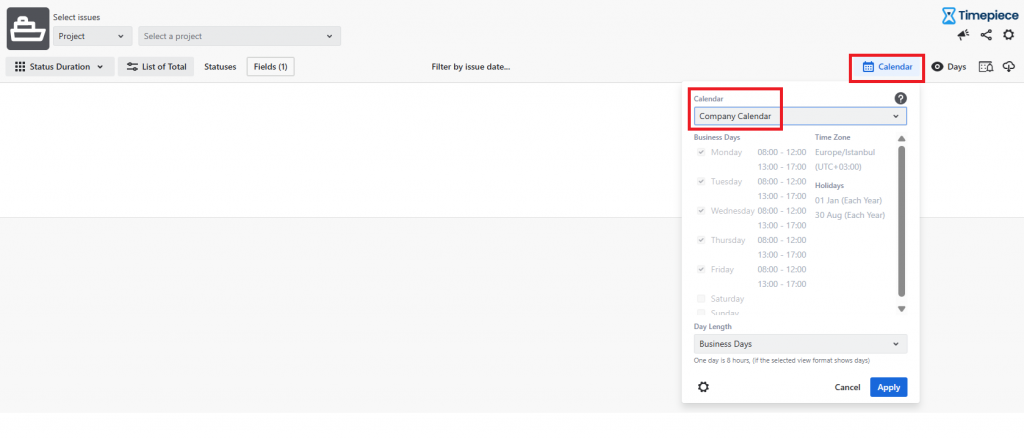
Pro Tip: Click the Calendar menu on the top right and select the company calendar if you have one.
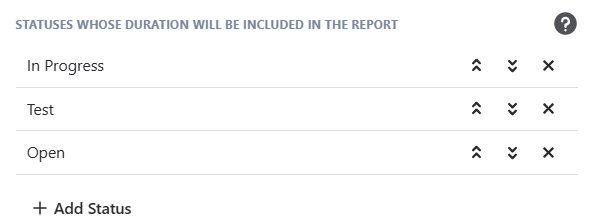
Step 2: Select statuses you’d like to add to the report. Even though this is an assignee-based report, only the time spent on the selected statuses will be included in the report.
Step 3: Click ‘Assignees’ to choose team members you want to see in your report.
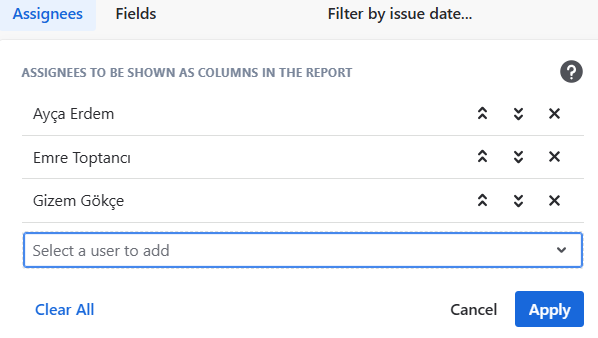
Step 4: After clicking ‘Apply’, Timepiece will generate your report in seconds.
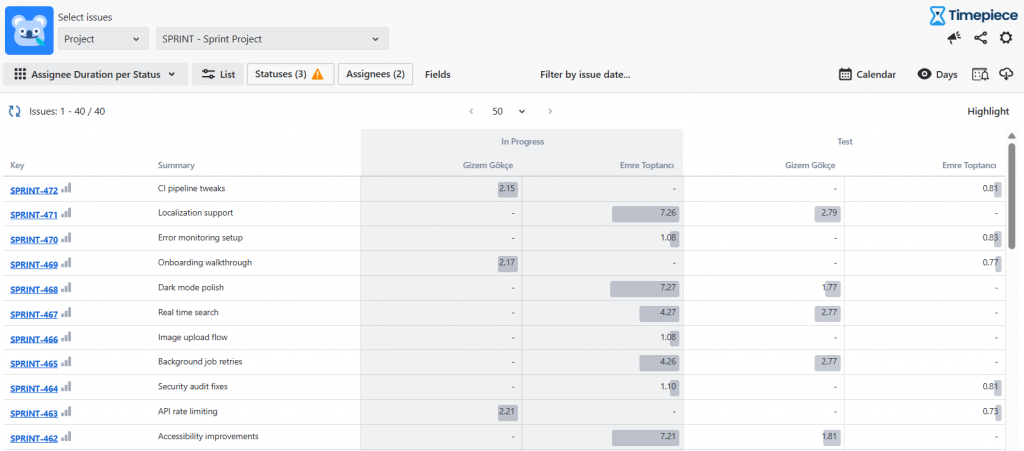
Pro tip: To see how much time each assignee spends in specific statuses, use the Assignee Duration Report per Status. Simply select the assignee whose performance you want to review and the statuses that matter to you. Timepiece will then generate a detailed report showing how long each assignee spent in each status.
Summary for Project Leaders
The Assignee Duration report is the simplest way to see the human side of your Jira workflow. By tracking how long work stays with each person, you can balance the load, protect your team from burnout, and keep your projects moving. If you’re looking for a mature tool that handles enterprise data, Timepiece is the oldest and most capable option in the Atlassian Marketplace.
Frequently Asked Questions
What is Assignee Duration in Jira?
Assignee Duration is a metric that tracks how long a Jira issue is assigned to a specific user. Unlike status duration, which tracks the workflow state, this report focuses on the person responsible for the task at any given time.
How do I calculate team capacity in Jira?
You can use the Assignee Duration report to compare the total time a person was assigned tickets against their available man-days in a sprint. If the duration exceeds their capacity (e.g., 20 days of work in a 15-day sprint), they are overloaded.
Does Timepiece work with custom Jira statuses?
Yes. Timepiece tracks time for every status in your workflow, including custom ones. It can also track how long any specific field (like “Priority” or “Sprint”) held a certain value.
To learn more about Timepiece, visit its Atlassian Marketplace page. You can also see the official Timepiece documentation page or book a demo.