Jira issue history is a great tool, it records everything that happens to a ticket. But if you have ever tried to see exactly how a bug or story looked 3 weeks ago, it is not easy. Usually, you have to scroll through a long list of text in the history tab and piece the information together yourself.
We added a feature to Historian – History Explorer for Jira called “Compare Dates” to fix this. It lets you see a side-by-side comparison of a single work item (issue) at any two moments in its history.
How It Works?
You can get to this report from the Historian menu or directly from a modal on the main app screen. Here is the basic process:
Select your work item: Pick the Story, Bug, or Epic you want to look at.
Choose your fields: You can pick specific fields like Status, Description or Assignee to focus on, or leave them empty to see every field available.
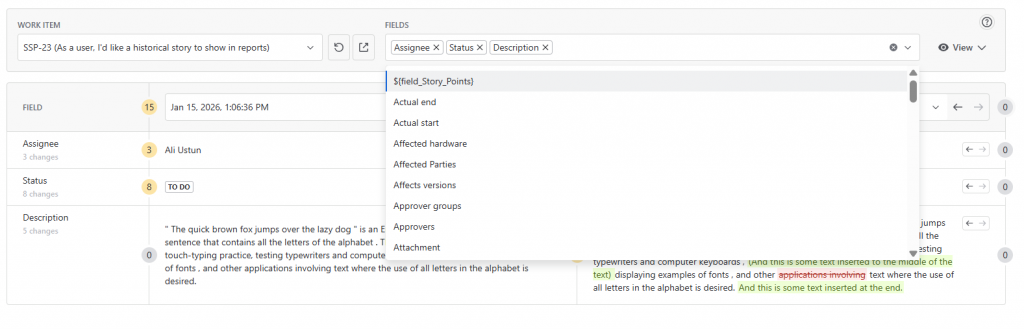
Pick two dates: The dropdown only shows timestamps where a change actually happened. This helps you skip over days where nothing changed and focus on meaningful updates.
See Details, Analyze Data with Compare Dates
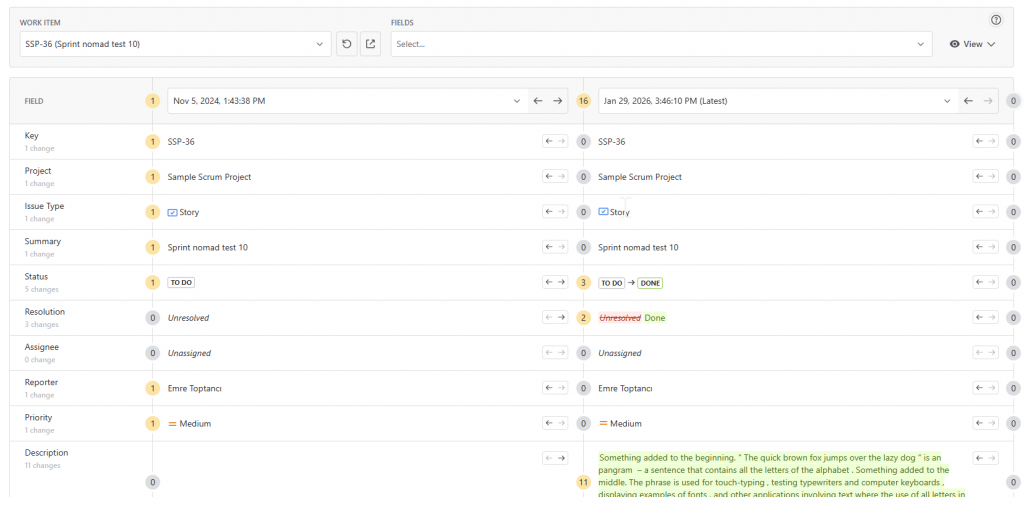
Once you pick your dates, you get a side-by-side view. There are a few tools to help you analyze the data:
Diff View
This highlights the specific parts of a field value that changed, so you don’t have to hunt for the difference.
Change Indicators
If you click on a field’s change count, a panel opens showing how many times that field changed before, between, or after your selected dates.
Navigation Arrows
You can use arrows to jump to the previous or next change in the ticket’s history. You can do this for the whole ticket or for a specific field.

Questions Compare Dates Answers
This feature is built for moments when you need to answer questions like “What was different back then?” or “How did this ticket get to its current state?”
It is helpful for:
Retrospectives: See exactly how a ticket’s priority or story points evolved during a sprint.
Audits: Provide a clear, side-by-side record of changes for internal or external reviews.
Arıza Bulma: Find the exact moment a specific field was modified and who made the change.
A Bird’s-eye View of Jira Issue History
Historian’s new Compare Dates feature is a straightforward way to understand the history of your Jira issues without the manual work. It gives you a clear look at your data so you can spend less time searching and more time moving your projects forward.
You can try it out by visiting Historian on the Atlassian Marketplace.
About Historian – History Explorer for Jira
Historian – History Explorer for Jira is designed to solve a common problem: the “wall of text” in native Jira history logs. While Jira records every modification and Jira issue history is great for some cases, it does not make that data easy to analyze or export. Historian transforms these messy changelogs into clean, organized, and filterable reports.
Key features for Jira administrators and project managers:
Flexible Perspectives: Switch between a Work Item-Based View to see the full narrative of a single task, or a Field-Based View to track changes to Status, Assignee, or Story Points across multiple issues at once.
Powerful Filtering: Instantly isolate updates to any standard or custom field to find precise answers without manual searching.
Export for Analysis: You can export your history reports in XLSX or CSV formats. This makes it easy to share data with stakeholders or perform deeper analysis in Excel.
Audit Readiness: Maintain a verifiable audit trail that is easy to read and export, ensuring total transparency for internal compliance or external reviews.
To learn more about Historian, visit its Atlassian Marketplace page. You can also visit the official Historian documentation page or book a demo.