Jira Query Language (JQL) is the most direct way to talk to your Jira data. As a developer, project manager, or Jira admin, you can save time and be more proactive once you master JQL.
What is JQL?
JQL stands for Jira Query Language. It is a text-based search method used in Jira’s “Advanced Search” mode. Think of it like a Google search, but specifically for your project data. While the “Basic” search lets you pick a project and status from a list, JQL lets you ask specific questions like: “Show me all high-priority bugs assigned to me that haven’t been updated in the last 7 days.”
It is powerful because it allows you to combine multiple criteria using logic (AND, OR) and dynamic functions (like “end of the week” or “current user”). And its sentence-like structure is making learning JQL a lot more accessible, even for non-technical users.
How does JQL work?
JQL works by filtering your issues through a sentence-like structure. That means you don’t need to be a coder to use it. You just need to know the three main parts of the sentence.
The Syntax of Jira JQL
A standard JQL query looks like this:
Field + Operator + Value
For example: priority = High
Field: The thing you are looking for (Priority).
Operator: The relationship (Equals).
Value: The specific detail (High).
You can chain these together using keywords like AND to make them more specific: project = “Mobile App” AND priority = High
JQL fields
Fields are the data buckets in Jira. These can be system fields (built-in) or custom fields your admin created.
System Fields: Project, issuetype, status, assignee, reporter, priority, resolution, created, updated, duedate.
Custom Fields: These usually have specific names like “Customer Tier” or “Start Date”. If a field name has a space in it, you must wrap it in quotation marks, like “Story Points”.
Pro Tip: If you are searching for a specific project or status, it is often safer to use the ID (like project = 1001) instead of the name. Names can change, but IDs stay the same.
JQL operators
Operators tell Jira how to compare the field to the value.
= (Equals): Exact match. assignee = “John”
!= (Not Equals): Everything except this. status!= Closed
IN: Matches any item in a list. This is much faster than writing multiple “OR” statements. status IN (“In Progress”, “To Do”)
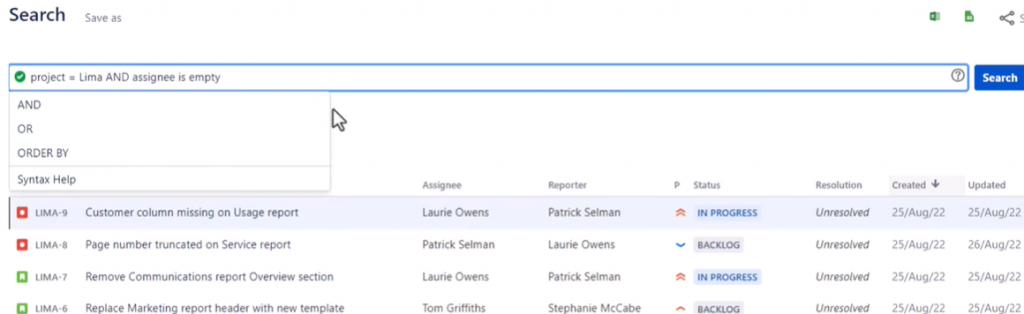
IS / IS NOT: Used only for empty or null values. assignee IS EMPTY
~ (Contains): Used for text searching. summary ~ “login” finds issues with “login” in the title.
WAS: Looks at history. status WAS “In Progress” finds issues that were being worked on at some point, even if they are closed now.
JQL functions
Functions are magic words that calculate a value for you right when you run the search. They make your queries dynamic so you don’t have to rewrite them every week.
currentUser(): The person logged in (you).
membersOf(“Group Name”): Everyone in a specific team.
now(): The current exact time.
startOfDay(), endOfWeek(), startOfMonth(): Timeframes relative to today.
openSprints(): Shows issues in currently active sprints.
Understanding JQL Syntax and Boolean Logic
The logic behind JQL is Boolean. This means it relies heavily on True/False statements combined with logical connectors.
Precedence: Just like in math class, brackets happen first.
Case Sensitivity: Keywords like AND, OR, and NULL are not case-sensitive. You can write and or AND. However, the values inside your quotes might be, depending on your Jira configuration.
Common keywords
You will use these four words in almost every query:
AND: Both conditions must be true.
OR: At least one condition must be true.
NOT: Excludes items. (e.g., NOT status = Closed)
ORDER BY: Sorts your list. You can add ASC (ascending) or DESC (descending). Example: ORDER BY created DESC.
Advanced JQL techniques
Once you master the basics, you can start doing time-travel searches.
The WAS Operator: This is unique to JQL. It lets you search the history of a ticket. assignee WAS “Jane Doe” This finds tickets Jane used to work on, even if Mike has them now.
The CHANGED Operator: This finds issues that moved through the workflow recently. status CHANGED FROM “In Progress” TO “Done” AFTER -1d This shows you exactly what was completed yesterday.
Common JQL Mistakes and How to Fix Them
The “AND” vs “OR” Trap: Jira reads AND before OR. If you mix them, always use parentheses.
Bad: project = A OR project = B AND status = Open
Good: (project = A OR project = B) AND status = Open
Searching by Name instead of ID: If you rename a sprint from “Sprint 1” to “Sprint Alpha”, your query breaks. Use the ID if you can.
Not using “Resolution”: Searching status = Done isn’t always enough. Always check the resolution if you want to be sure the work is actually finished.
Top 20 JQL Queries to Use Every Day
To be more productive and find what you need with less effort, you can use these JQL examples daily.
Here are the top JQL queries for developers, scrum masters, product owners and product managers, also power users. Feel free to to grab the ones that match your daily workflow.
For Developers (Focus & Productivity)
- Eliminate noise. This filter shows exactly what is on your plate, sorted by what is most important.
assignee = currentUser() AND resolution = Unresolved ORDER BY priority DESC
- Don’t let your bug reports vanish. Keep track of issues you found that haven’t been fixed yet.
reporter = currentUser() AND status!= Done
- Cut through email clutter. This query instantly finds tickets where teammates are discussing you or asking for your input.
comment ~ currentUser()
- The perfect helper for stand-ups. Use this to fill out your weekly status report or timesheets in seconds.
resolution = Fixed AND resolutiondate >= -7d AND assignee = currentUser()
- Plan your Monday morning effectively by seeing upcoming deadlines at a glance.
duedate >= startOfWeek() AND duedate <= endOfWeek()
For Scrum Masters (Process & Hygiene)
- Protect your sprint commitment. Find work that is floating around in the active sprint without an owner.
sprint IN openSprints() AND assignee IS EMPTY
- Clean your backlog. This finds “zombie” tickets that haven’t been touched in a month and are likely clogging up your board.
status NOT IN (Closed, Done) AND updated < -30d
- Monitor volatility. Identify new issues that were created during the active sprint cycle.
sprint IN openSprints() AND created >= -1w
- Remove impediments fast. This highlights work that cannot move forward because of a dependency.
issueLinkType = “is blocked by”
- Verify velocity. See exactly what crossed the finish line this week to validate your burndown chart.
status CHANGED TO Done AFTER startOfWeek()
- Check your quality. This reveals tickets that were marked finished but got sent back to development.
status CHANGED FROM Done TO “In Progress”
- Balance the load. Visualize what your entire squad is working on in real-time.
assignee in membersOf(“Dev Team”) AND status = “In Progress”
For Product Owners & Managers (Strategy & Oversight)
- Identify empty containers in your roadmap that need requirements definition.
issuetype = Epic AND issueFunction not in hasLinkType(“Epic-Story Link”) (Requires ScriptRunner/Plugins)
- Pre-launch check. Shows every unfinished item tagged for your next upcoming release.
fixVersion = earliestUnreleasedVersion() AND status!= Done
- The “Firefighting” view. What is broken right now that threatens the release?
priority IN (Critical, High) AND resolution = Unresolved
- Unblock the flow Pending Approvals (Jira Service Management). Find service requests waiting for a manager’s sign-off.
approvals = pending()
- Slice data by architecture. Great for component leads tracking tech debt.
component = “Backend” AND status!= Done
For Power Users (Deep Search)
- Drill down. Isolate all the child tasks of a specific parent issue.
parent = “PROJ-123”
- Search everywhere. Scans summaries, descriptions, and comments for a specific phrase or error code.
text ~ “error message”
- Stay in the loop. Monitor tickets you care about but aren’t directly assigned to.
watcher = currentUser() AND status!= Closed
Frequently Asked Questions
Q: My query works but it is slow. How do I fix it?
A: Avoid starting text searches with a wildcard (like summary ~ “*bug”). This forces Jira to scan every single word in the database. Also, try to filter by Project first to narrow down the search space.
Q: Can I filter for “Blocked” issues where the blocker is not finished?
A: Standard JQL can find linked issues (issueLinkType = “is blocked by”), but it cannot natively check the status of the linked issue.
Q: How do I search for subtasks of a specific story?
A: Use the parent field. The syntax is parent = “PROJ-123”. This will return all subtasks belonging to that specific story ID.
Q: Can I see issues where I was mentioned in a comment?
A: Yes! Use comment ~ currentUser(). This performs a text search for your user ID or name within the comments section. It’s a lifesaver for finding discussions you might have missed.
Q: How do I find tickets that haven’t been updated in 30 days?
A: Use the relative date format. The query updated < -30d means “updated before 30 days ago.” Combine this with status!= Done to find your stale, lingering work items.